How to Translate an Adobe InDesign File: The Professional Workflow Explained
Key Takeaways
- The correct way to translate an InDesign file is to export it as IDML, not to copy and paste text into Word or send the raw INDD file to a translator.
- IDML preserves layout structure, formatting tags, and text segments in a format compatible with professional translation memory tools.
- A professional InDesign translation workflow combines translation, quality review, and multilingual DTP — all three stages are required to produce a print-ready translated file.
- Text expansion during translation (up to 35% for European languages) and text contraction (up to 60% for Japanese and Chinese) must be managed at the DTP stage — this is not handled automatically.
- The most common mistakes in InDesign translation — omissions, formatting loss, and layout breakage — all result from shortcuts at the file preparation stage.
Translating an Adobe InDesign file is not simply a matter of sending the document to a translator and receiving a translated version back. InDesign files carry layout information, formatting tags, linked graphics, and text frames that interact with each other in ways that affect how translated text flows through the document. Without the right process, translation introduces text overflow, broken formatting, and missing segments that require significant rework.
Table of Contents
ToggleThis guide explains the professional workflow for translating InDesign files — from file preparation through to print-ready delivery.
Step 1: Prepare the InDesign file for translation
File preparation is the stage most often skipped — and the one most responsible for problems later in the project.
Before exporting for translation, review the InDesign file for the following:
Hard returns vs soft returns
Hard returns (paragraph marks) create new text segments in translation tools. If hard returns have been used to create line breaks within paragraphs, each line becomes an isolated segment — presenting translators with sentence fragments rather than complete sentences. Replace hard returns with soft returns (line breaks) wherever they appear within a paragraph. To see all hidden characters, go to Type > Show Hidden Characters.
Text in linked graphics
Any text embedded within linked graphics is excluded from the IDML export. This text must be localised separately, which adds time and cost. The better approach is to place text in a separate text box layered above the graphic, so it is captured in the IDML export alongside the main body text.
Tables
Manually created tables built from text frames and box rules cause layout problems when translated text expands. Use the InDesign tables package instead — it handles cell expansion automatically.
Text frame threading
Text that continues across multiple frames should be threaded. Threading ensures translation tools read connected frames as a single text segment rather than isolated fragments.
Style sheets
Ensure Character and Paragraph styles are applied consistently throughout the document. Manual formatting overrides are frequently lost during the translation process, requiring DTP cleanup afterwards.
Space for text expansion
European languages (German, French, Italian, Spanish) typically expand by 25 to 35 per cent when translated from English. Arabic and Hebrew require full right-to-left layout reconstruction. CJK languages (Japanese, Chinese, Korean) contract by 40 to 60 per cent. Layouts with no allowance for expansion will require more DTP work after translation.
Step 2: Export as IDML
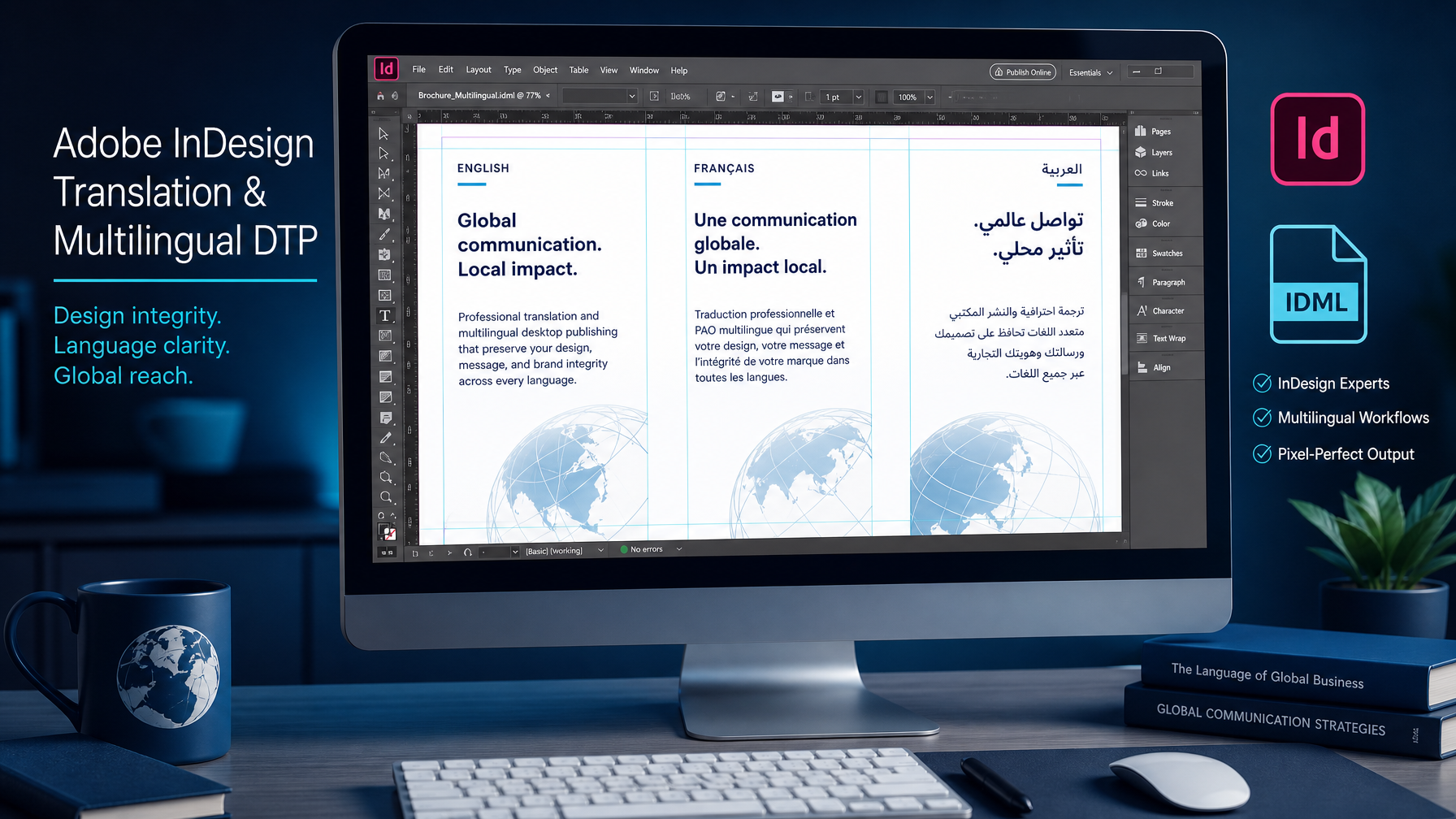
Once the file is prepared, export it as IDML (InDesign Markup Language) rather than sharing the raw INDD file.
IDML is an open-format XML-based file that exposes the text content of the InDesign document in a structure compatible with professional translation memory tools such as MemoQ. Unlike the binary INDD format, IDML can be processed by translation software, which segments the text, applies translation memory, enforces terminology consistency, and preserves all formatting tags throughout the translation.
IDML files are also significantly smaller than INDD files because they do not carry linked images and graphics — making them faster to share and easier to manage across a project.
The INDD file and all linked assets should be retained for the DTP stage, when the translated IDML is reimported into the original InDesign document.
Step 3: Translation using MemoQ
Professional InDesign translation uses translation memory (TM) software — MemoQ is the tool used by Global LTS. The translator works within MemoQ rather than directly in the InDesign file.
MemoQ processes the IDML file and presents the translator with individual text segments. As translation progresses, the software builds a translation memory that stores confirmed translations. When the same segment — or a closely similar one — appears again in the same document or in future documents, the TM applies the previous translation automatically, ensuring consistency and reducing cost on repeat or updated projects.
Terminology management runs in parallel: approved translations for product names, technical terms, and brand-specific vocabulary are stored in a term base that flags inconsistencies during translation.
All formatting tags from the original InDesign file are preserved within MemoQ and exported with the translated text, so the structure of the document is maintained when the translated file is reimported into InDesign.
Step 4: Quality review
After the initial translation is complete, the translated file goes through a quality review stage — either by a second linguist (proofreading) or through a formal edit-and-review process depending on the project requirements and ISO 17100 compliance level.
At this stage, the reviewer checks:
- Accuracy of translation against the source text
- Consistency of terminology across the document
- Correct application of target-language conventions (punctuation, number formats, date formats)
- Keigo register compliance for Japanese; formal/informal register for other languages
Step 5: Multilingual DTP
Once the reviewed translation is complete, the translated IDML file is exported from MemoQ and reimported into the original InDesign document by the DTP team.
Reimporting translated text into InDesign invariably requires DTP adjustment. The main tasks at this stage include:
- Text reflow — translated text that is longer or shorter than the source will reflow across text frames and pages. The DTP team adjusts text frames, font sizes, tracking, and leading to accommodate the translated text within the original layout.
- Right-to-left languages — Arabic and Hebrew require full document mirroring: text direction, text frame alignment, and page flow all need to be reversed. This is document reconstruction, not text replacement.
- CJK font and spacing — Japanese, Chinese, and Korean text requires appropriate CJK-compatible fonts and specific spacing adjustments. Standard Latin fonts do not contain CJK characters.
- Hyphenation and line breaks — each language has its own hyphenation rules. German, for example, allows and often requires hyphenation of long compound words; Japanese does not use hyphenation in the same way.
- Final visual check — the DTP team reviews every page of the translated document against the source layout to confirm there are no overflowing text frames, missing text, or alignment issues.
Step 6: Print-ready delivery
The final deliverable is a print-ready PDF and the fully formatted InDesign source file in the original layout, with all linked assets. This is the file you can send directly to your printer or upload to your digital publishing platform.
If the project involves multiple languages, the same workflow runs in parallel for each language combination, with a separate DTP pass for each.
Global LTS handles the full InDesign translation workflow in-house — file preparation, IDML processing, translation in MemoQ, quality review, multilingual DTP, and print-ready delivery. Contact us to discuss your InDesign translation project.
For related reading, see our guides on IDML vs INDD: which file format to send your translation agency and multilingual DTP explained, or visit our InDesign translation services page.